
PC-cillin & Trend Micro Education Suite
【Software Name】:PC-cillin & Trend Micro Education Suite(Trend Micro Antivirus)
【Versions】:
- 1. Central Managed Version - Apex One Security Agent(Icon:
 )
) - 2. Standalone Version
【Eligible Users】:
- 1. Central Managed Version: University-owned computers (desktops and laptops) used by faculty and staff in administrative and academic units.
- 2. Standalone Version: Students’ personal computers (non-university-owned devices).
【Languages】:Chinese / English
【Operating Systems】:
| OS | Details |
|---|---|
| Central Managed Version | Windows 10, Windows 11, Windows Server, macOS(Windows Server 2008, 2008 R2 or earlier) |
| Standalone Version | Windows 10, Windows 11, macOS |
| Note | Strengthen Your Linux Server Protection with EDR, please contact ext. 31134. |
【How to Obtain】:
| Central Managed Version |
Windows (64bit) / Windows Server: Mac OS : Windows(ARM) : Notes: |
| Standalone Version |
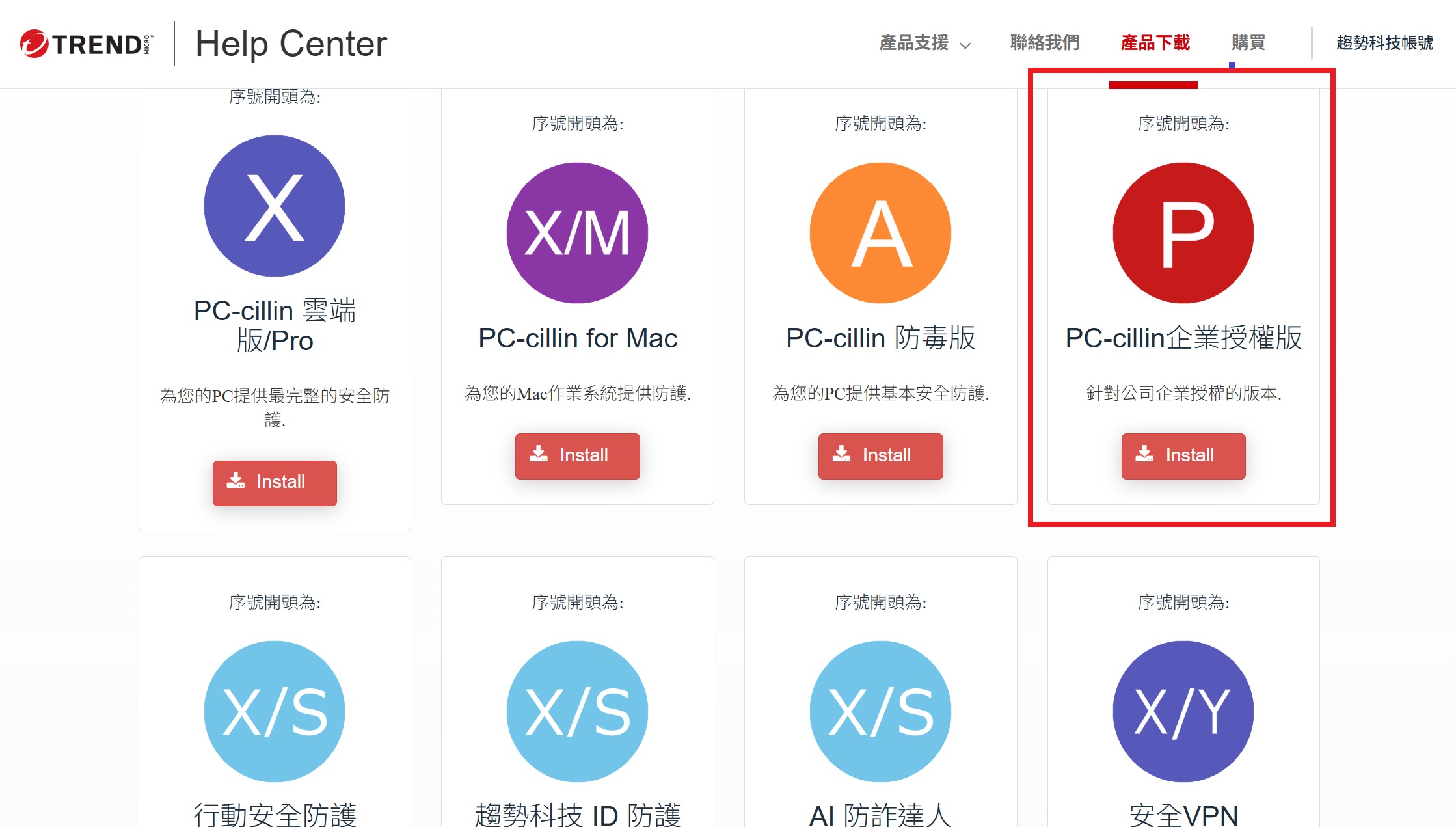
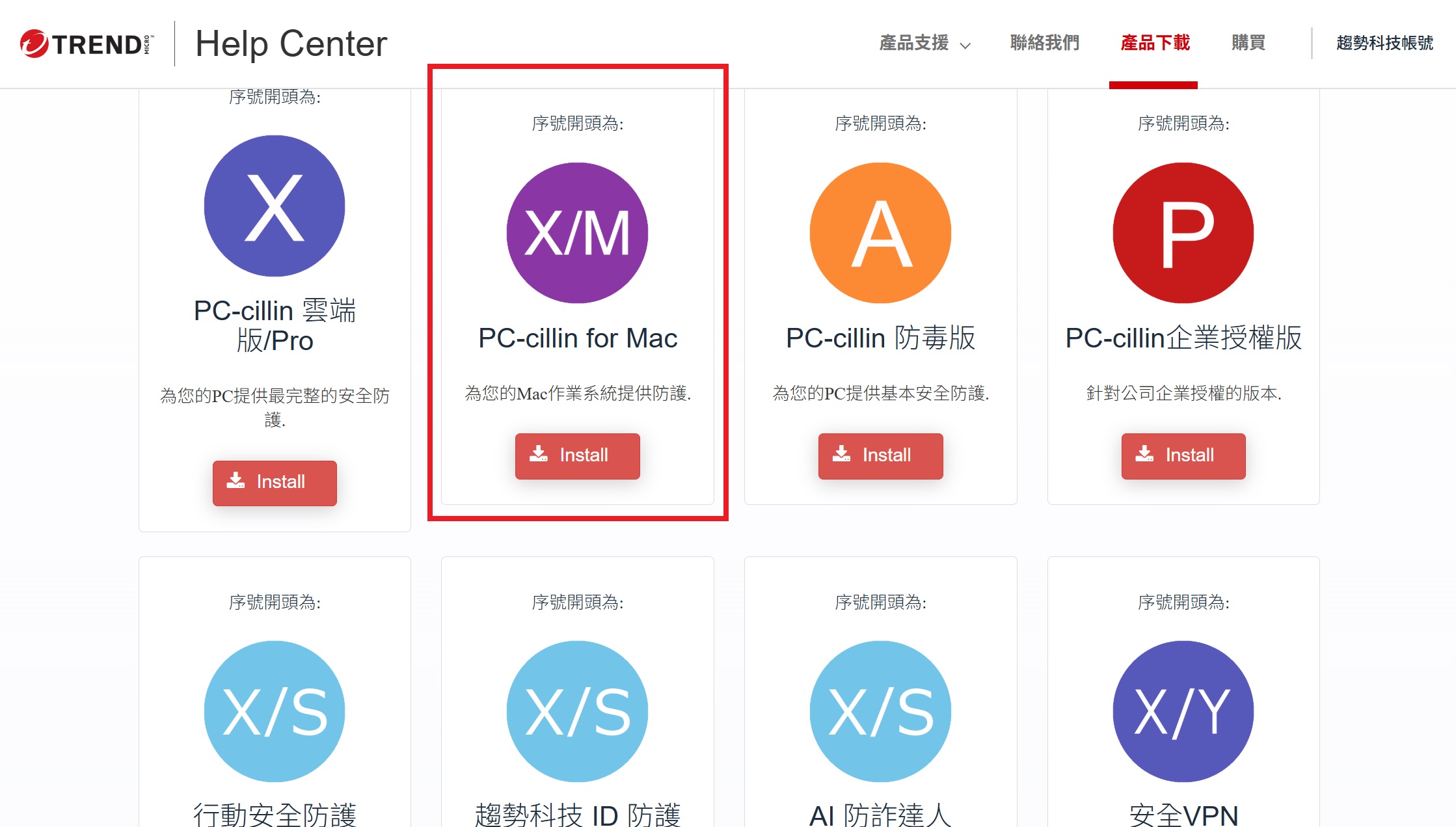
Windows:Trend Micro Official Website → Help Center → PC-cillin Corporate Edition macOS: Trend Micro Official Website → Help Center → PC-cillin for Mac Notes: |
【Installation Guide】:

【Important Notes】:
- For issues related to the Central Managed Version, please contact:
Ext. 31134 or yucshih@mx.nthu.edu.tw - For Standalone Version support, please contact Trend Micro Customer Service:
Tel: 02-2378-3666 ext. 4 or 5
Service Hours:
Mon–Fri: 09:00–12:00, 13:30–17:30, 18:30–21:00
Sat–Sun: 10:00–12:00, 13:30–16:00 - For general campus licensed software inquiries: Ext. 31000 or service@cc.nthu.edu.tw
【FAQ】
Q1: What is the difference between the Central Managed Version and the Standalone Version?
A1: The difference lies in centralized management. The Central Managed Version is managed by the Computer & Communication Center for updates and security incident response, improving overall campus security.
The Standalone Version provides basic antivirus protection and is managed by the user.
Q2: Does the Central Managed Version monitor personal files or user activities?
A2: No. It only reports security-related status and threat detection information. It does not inspect personal files, internet activities, or monitor user behavior.
Q3: Can the Standalone Version be installed on university-owned computers?
A3: Not recommended.
Q4: If I have both a university-owned computer and a personal computer, how should I install?
A4: Install the Central Managed Version on university-owned devices and the Standalone Version on personal devices.
Q5: How do I uninstall Symantec or Kaspersky (Windows)?
A5:
- Close all running programs.
- Go to Start → Settings → Apps → Installed apps.
- Find Symantec Endpoint Protection or Kaspersky Endpoint Security.
- Click Uninstall.
- Follow the on-screen instructions.
- Restart your computer after completion.
If errors occur, use the Kaspersky removal tool (kmvremvr). (Please right-click and select “Save link as…” to download.)
If errors occur, use the Symantec removal tool(CleanWipe). Please refer to the official instructions.
 cc.nthu.edu.tw